Turn your tablets into extra screens for your Mac or PC
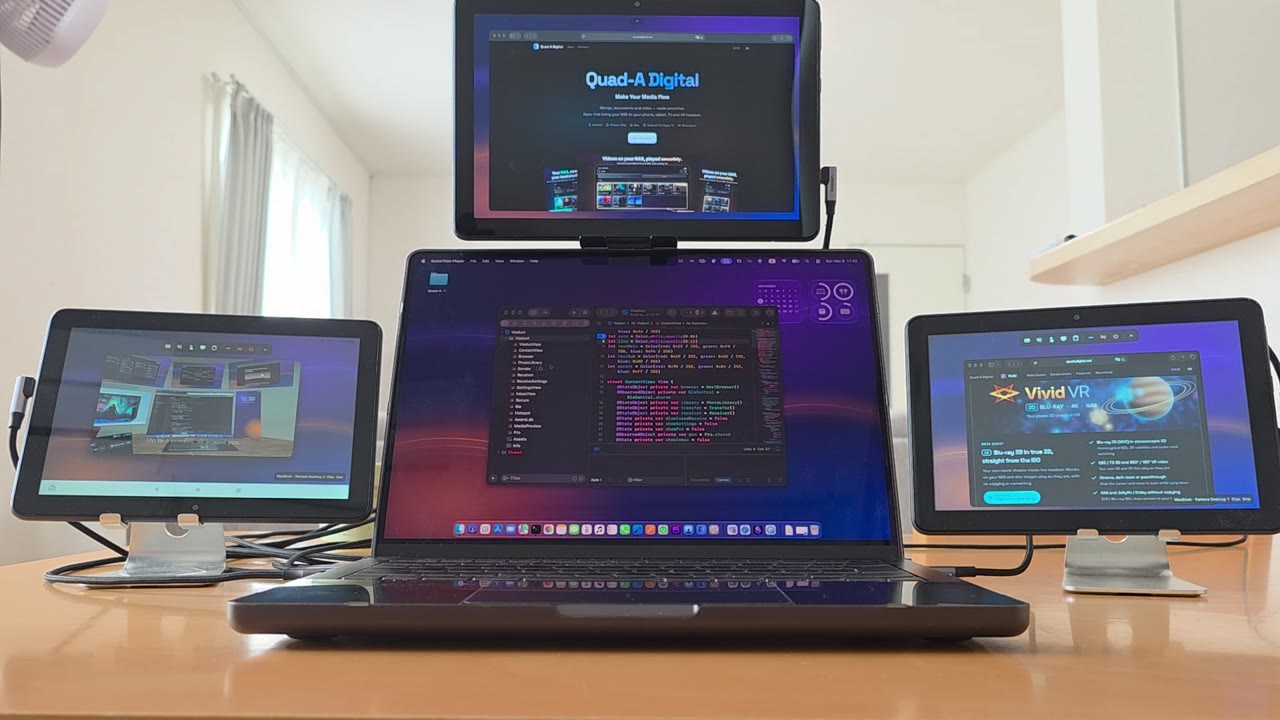
Install Vertex Display on a Fire tablet and tap “Connect as a sub-monitor.” A new display appears on your Mac or Windows PC — just drag windows over. Got an old tablet in a drawer? Put it to work.
- Use several tablets at oncePlace them around your laptop for a multi-screen setup
- Sized exactly to your screenNo black bars, and it resizes when you rotate the tablet
- USB cable connection (Mac)Steady even where Wi-Fi is busy — the tablet charges while connected
- Free 7-day trial, then a one-time purchaseRemote desktop over Wi-Fi is free. No subscription
- Requires Fire OS 7 or laterMost Fire tablets from 2019 onward
Your computers and your phone, right in front of you.
Built as a tool for development and everyday work. Use your familiar screens from the couch, or even lying down.
Up and running in 3 steps
Install the host
On the device whose screen you want to share, install and launch the host app (Mac or Windows) or Vertex Host (Android).
Pick it in Quest
Open Vertex Display on Quest and hosts on the same network appear in a list. Select one and enter the PIN shown on the host. That's it.
Arrange your screens
Add more screens and devices and place them as windows anywhere in Quest. Next time, the screens you had open come right back.
Apps
There's an app for viewing (Meta Quest) and an app for the device that sends its screen (the host). The host apps are free.
 Android — Vertex Host
Requirements & notes
Requirements
- Meta Quest 3 / 3S (up to 6 screens). Quest Pro supports up to 4, Quest 2 up to 2
- Mac — macOS 13 or later. Apple silicon recommended (Intel: up to 2 screens)
- Windows — Windows 10 / 11 (64-bit). Fast hardware encoding on NVIDIA, AMD and Intel GPUs
- Android — Android 8 or later (audio requires Android 10 or later)
- Fire tablet — Fire OS 7 or later (most models from 2019 onward)
- All devices must be on the same network (same Wi-Fi or LAN)
For the best experience
- 5 GHz or faster Wi-Fi is recommended. Connecting your Mac or Windows PC by Ethernet all but eliminates stutter
- Long sessions drain the battery on Quest and phones, so we recommend keeping them charging
- Copy-protected video apps (such as Netflix) may not send video or audio
- Call audio (phone calls and voice calls in messaging apps) can't be sent due to Android limitations
- Blind mode (hiding the screen) isn't available on phones due to Android limitations. Use "Dim screen while connected" instead